
A lot shipped last week. The headline: your assistant can now post directly to Slack channels. Here's the full rundown.
What's new
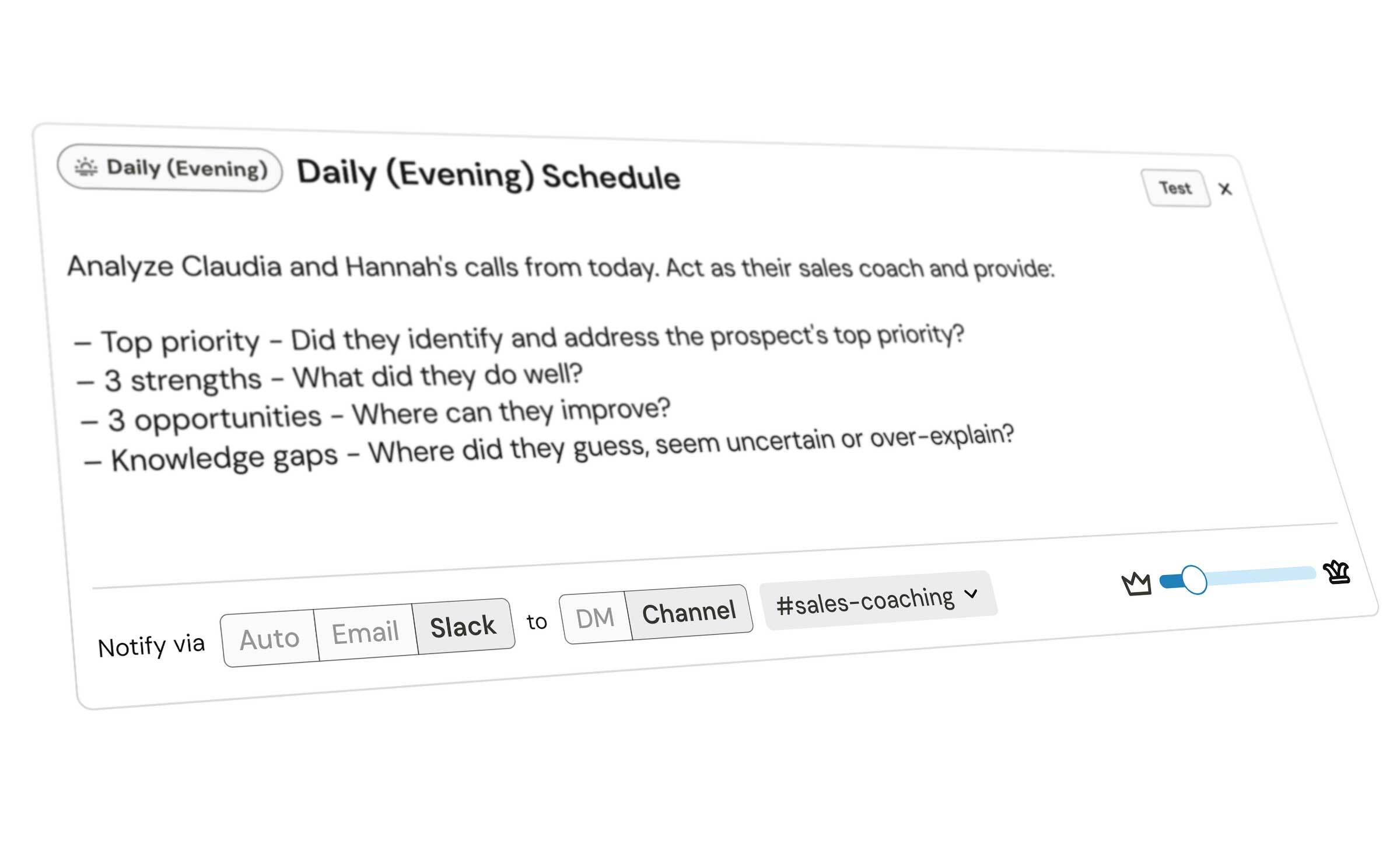
Assistant schedules can post directly to Slack channels
Your assistant's scheduled actions no longer get sent only to your inbox. Send them to any Slack channel – pipeline summaries to #sales, customer health reports to #customer-success, deal alerts to wherever your team is already paying attention.
Everyone sees the same information at the same time, without anyone having to forward an email or copy-paste into a thread.
To set it up: User profile —> Assistants —> Select your assistant —> Update “notify via”.
Ask your assistant how to get more out of Day AI
Not sure how to do something? Just ask. Your assistant can now answer questions about Day AI features and workflows directly in chat – things like "What are common use cases people love" or "How do schedules work?" It pulls from our documentation so you get accurate answers without leaving your conversation.
Floating meeting controls
When a meeting starts, a small card appears in the corner of your home page with one-click recording controls and a "Prep me" button that opens meeting prep with the full event context. If you don't need it, dismiss it once and it won't appear again for that meeting. Helpful when you want it, out of the way when you don't.
What's improved
Tables are easier to read – Tables in chats now display with clean borders, subtle header backgrounds, and tighter text sizing. When you're scanning meeting notes, pipeline summaries, or any content with tabular data, the information is much easier to follow at a glance.
Imported opportunities show loading status – When you open a newly imported (or assistant created) opportunity, you'll now see a banner indicating that Day AI is gathering context. We're analyzing your emails, meetings, and communications to populate the opportunity with relevant insights – now you'll know that's happening instead of wondering if something's missing.
Clips are created through your assistant – When you're reviewing a meeting recording and want to save a key moment, highlight the transcript text and click "Create clip with assistant." The clip appears in your conversation thread, which means you can find it later and share it directly from the conversation.
Smarter assistant follow-through – Small things that add up: create a pipeline and it opens directly to the Kanban view. Create a custom property and the edit sidebar opens automatically. Create or update a view and it only shows columns that are actually relevant – no more hiding a bunch of default columns you don't need.
Simpler assistant setup – We replaced the "Focus Areas" step with Daily Instructions templates that match how you actually work. Pick from Meeting Prep, Sales Snapshot, Call Highlights, Follow-Ups, or write your own. Your assistant runs these automatically every morning at 9 AM.
Sharing settings are visible on your profile – Your privacy controls shouldn't be buried behind multiple clicks. Now when you visit your Google Accounts settings, you'll see a clear summary of what data you're sharing right on the page.
Views remember where you left off – Navigate away from a table and come back, and Day AI returns you to exactly where you were – your last viewed saved view, not the default. One less interruption keeping you in your flow.
