
Day AI Setup Guide
This guide will help you get started and make the most of Day AI. Nearly everything covered in this guide can be handled by asking your Assistant. When in doubt, just ask!
Your First Day
The goal today: get connected and see Day AI in action.
Using your Assistant to onboard
Your Assistant has tools to get all the basics configured for you. If you want to take a break from onboarding and come back to it later you can always prompt to jump back in.

Ask your Assistant:
- "Onboard me to Day AI"
Set Up Email Sensitivity Filtering
During email ingestion, Day AI will suggest sensitivity rules to protect private information. This goes beyond simple domain blocking—it uses AI to detect potentially sensitive content like HR discussions, investor communications, legal matters, and personal conversations.
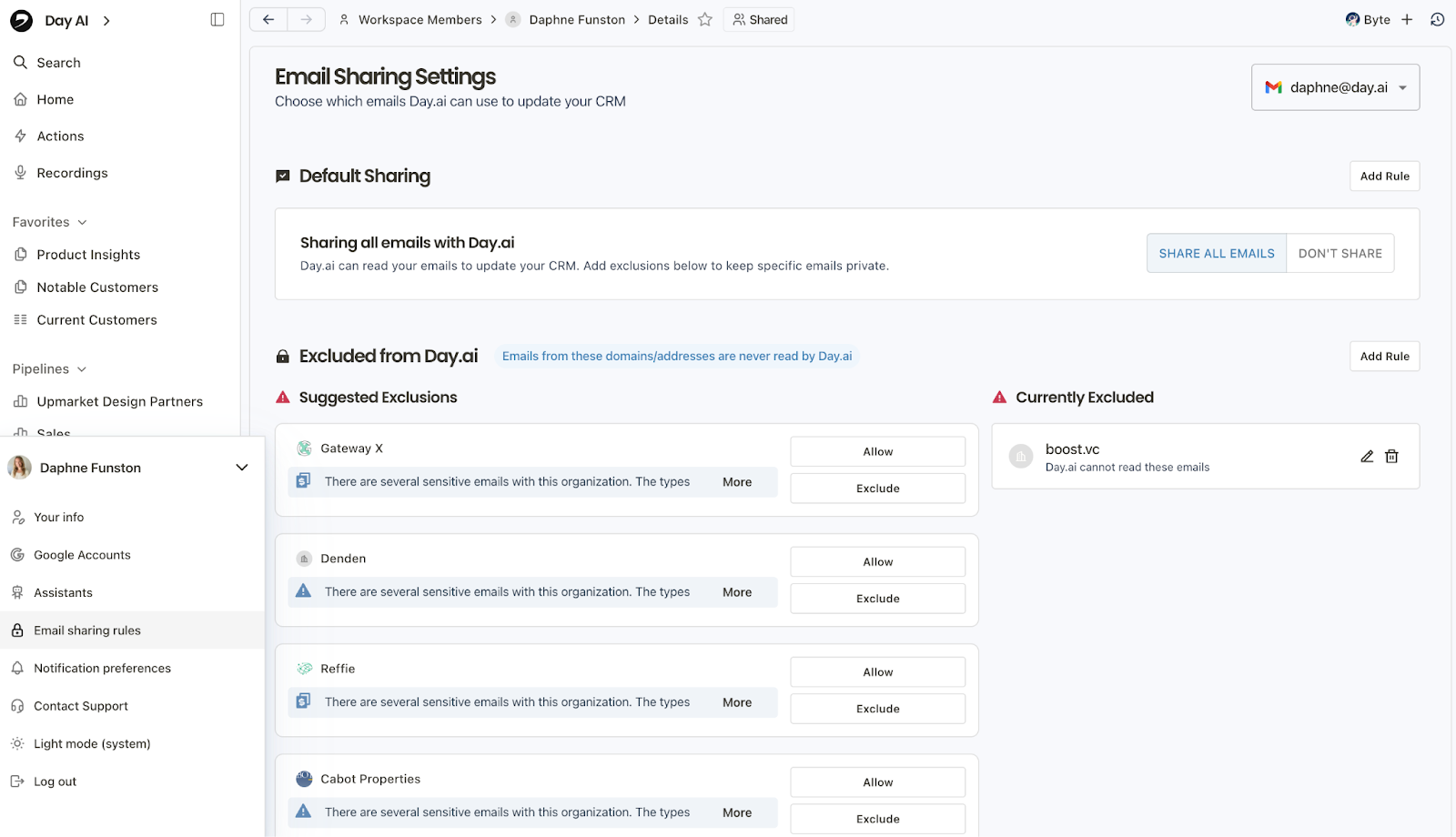
Tip: You can access this manually from your Profile > Email sharing rules
Ask your Assistant:
- "Walk me through my email sensitivity settings"
- "Create a rule to exclude all emails from acmecorp.com"
Meet Your Assistant
Your Assistant is the primary way you interact with Day AI. Try a few things to get a feel for how it works:

Ask your Assistant:
- To query data "What do you know about [company you've been emailing with]?"
- To take action "Draft a follow-up email to [person] about our last conversation"
- About the app "How do opportunities get created?"
Record your first meeting
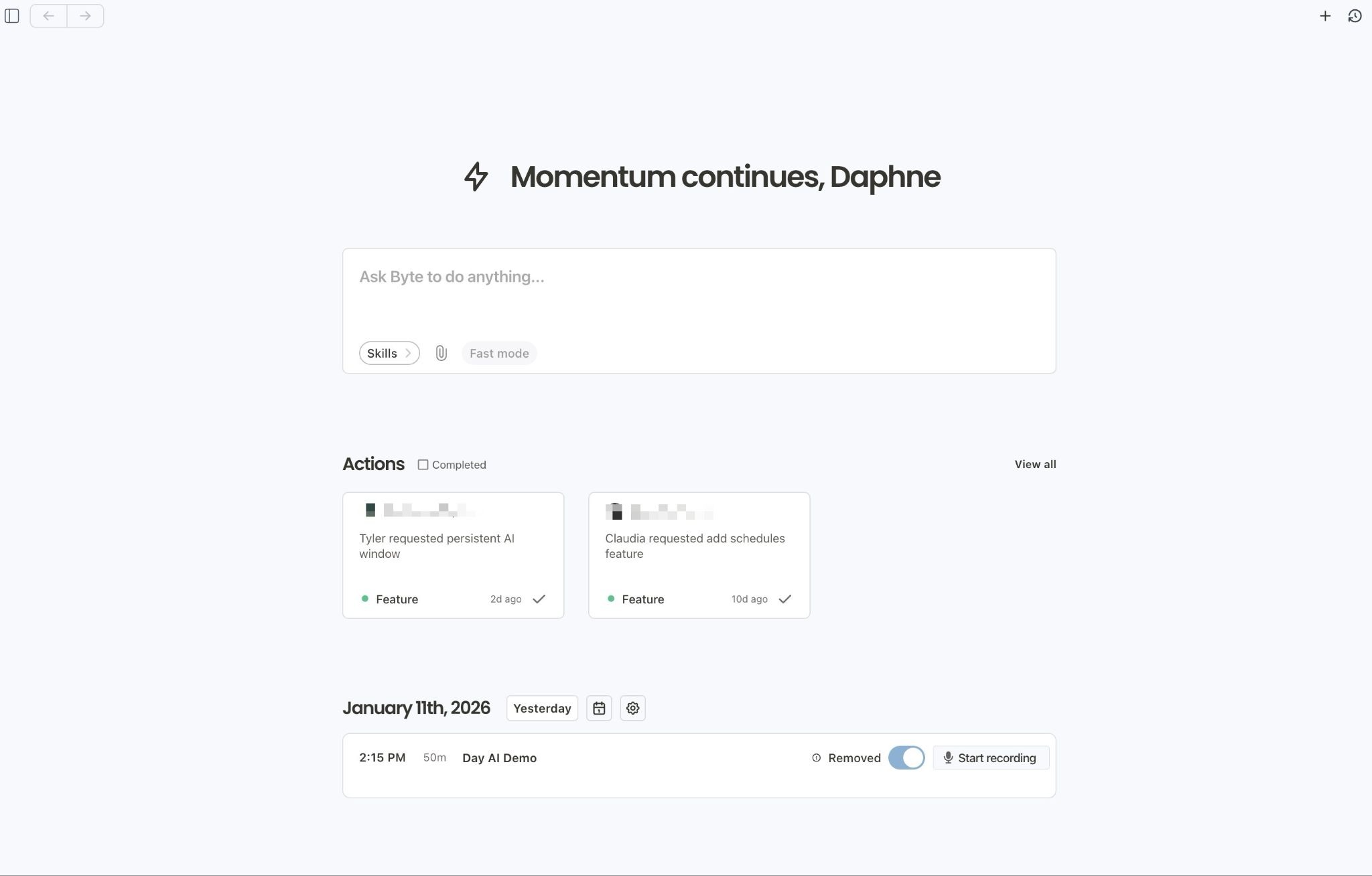
When you onboarded you configured defaults for meeting recording (all meetings, only external meetings, only internal meetings or no meetings). Based on these settings, the Assistant will join any relevant meetings on your calendar at the start time of the meeting.
You can always adjust recording settings for an individual meeting from the Calendar at the bottom of Home. Change the toggle to switch recording settings, or click the microphone to summon the bot immediately – this is useful if you join a meeting before the scheduled start time or if the Assistant was kicked out and you want to bring it back in.
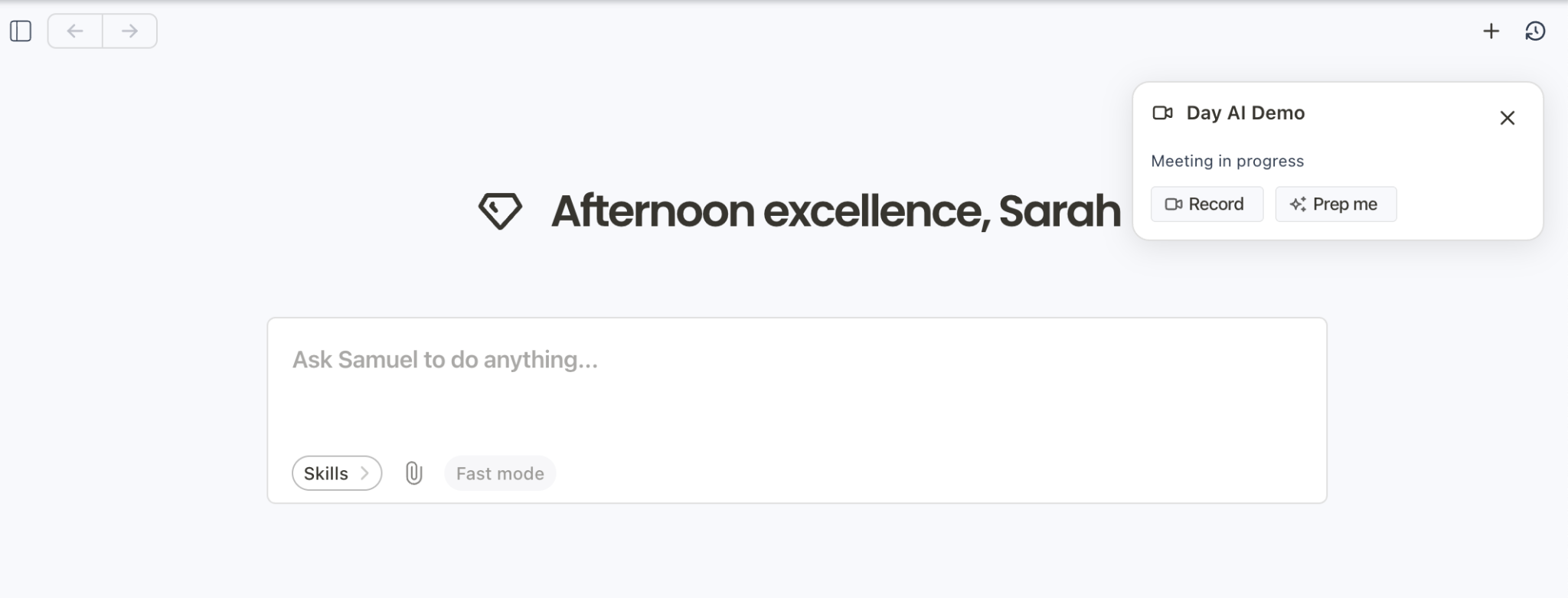
While you are in an active meeting, an alert will also appear in the top right of the app for easy access to add or remove the Assistant from the meeting. You can also remove the Assistant directly from Zoom or GMeet by typing /day leave into the chat within the meeting.
You can adjust your Recording and Sharing Controls in Profile > Google Accounts
Your First Week
The goal this week: tailor Day AI to you and your business, and connect it to the different surfaces where you’ll want access. Think about this like onboarding your Assistant to your company and giving it all the context it needs to get to work on your behalf!
Configure Your Templates
Your Assistant can write in your voice and create templates for different recurring tasks to follow any protocols.
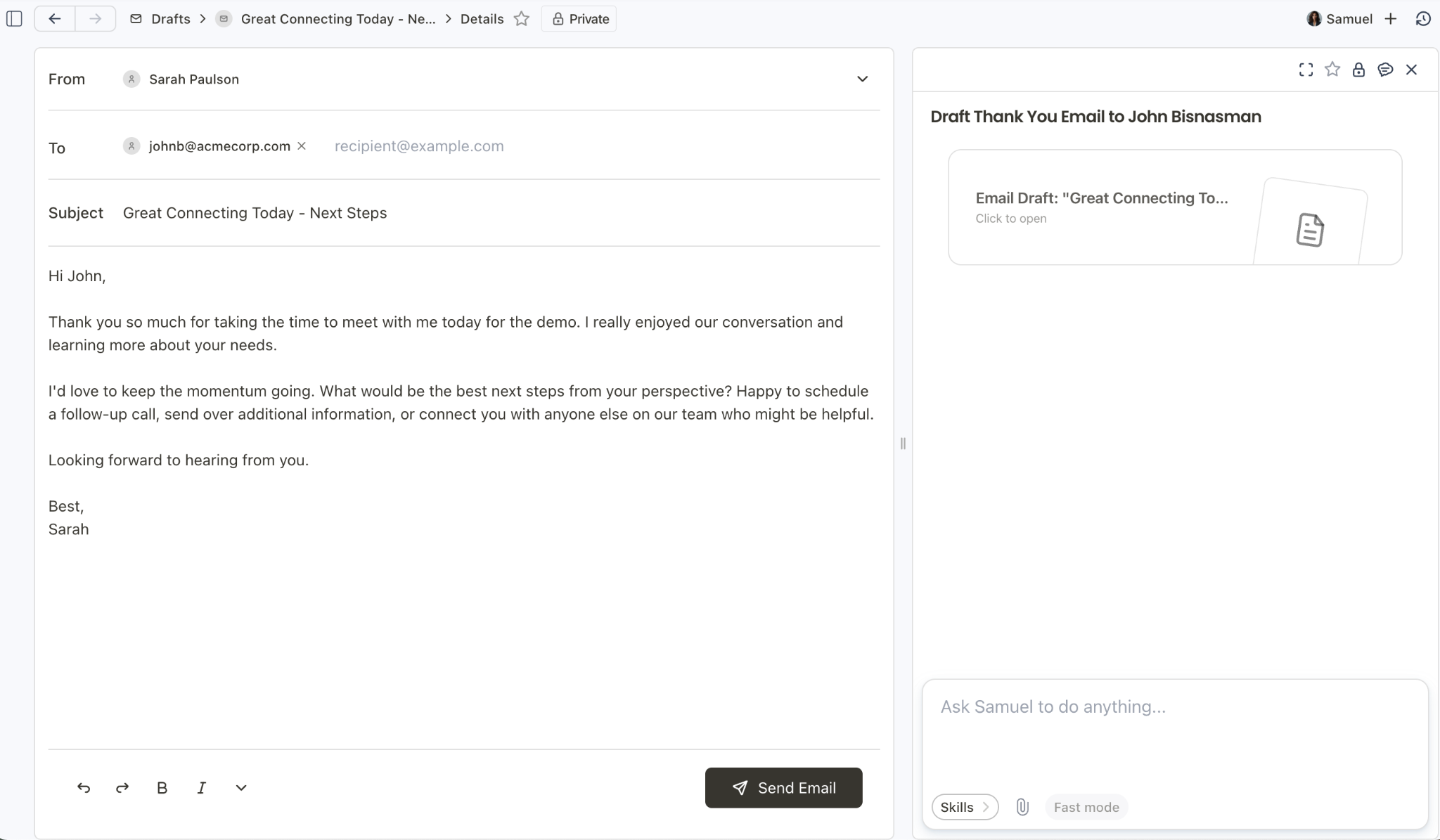
Ask your Assistant:
- "Look at my emails and help me create a template that sounds like me"
- "Create a template for Proposals using this example"
Create Your First Pipeline
If you're tracking deals, fundraising, or any process with stages, set up a pipeline. You don't need to configure anything manually. Just tell your Assistant what you are looking for and it will guide you through. Once you have a pipeline set up, Day AI will automatically create opportunities each time you engage with a prospect that matches your pipeline.
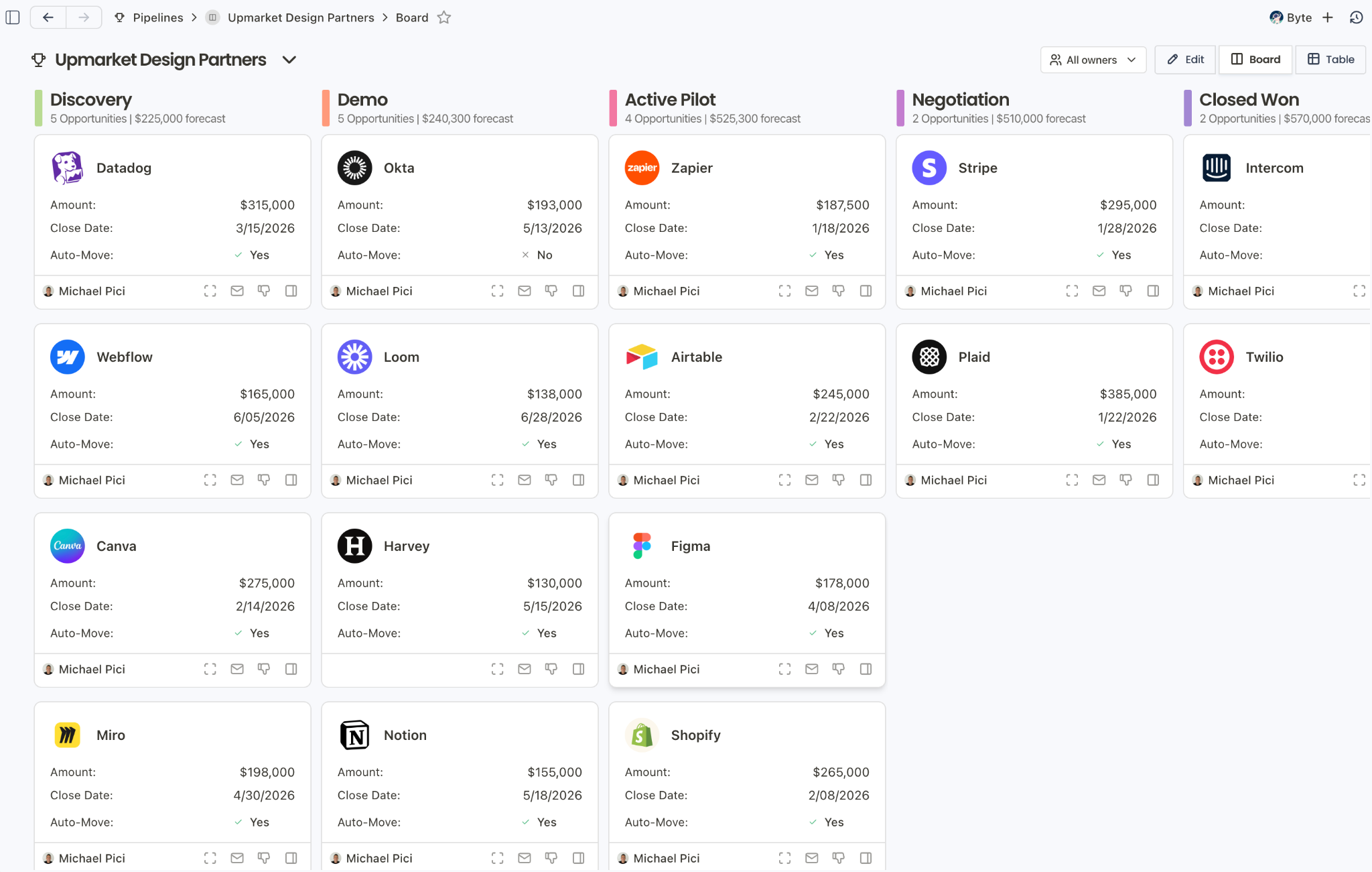
Ask your Assistant:
- "Create a sales pipeline for me"
- "Set up a fundraising pipeline with stages for intro, partner meeting, due diligence, and closed"
- "I need a pipeline to track customer onboarding"
Import Your Existing Data
People/Organizations/Opportunities
Day AI automatically populates Contacts from your GMail and enriches them. If you're coming from another CRM or have data in spreadsheets, Day AI can import it.
Ask your Assistant:
- "Help me import my opportunities"
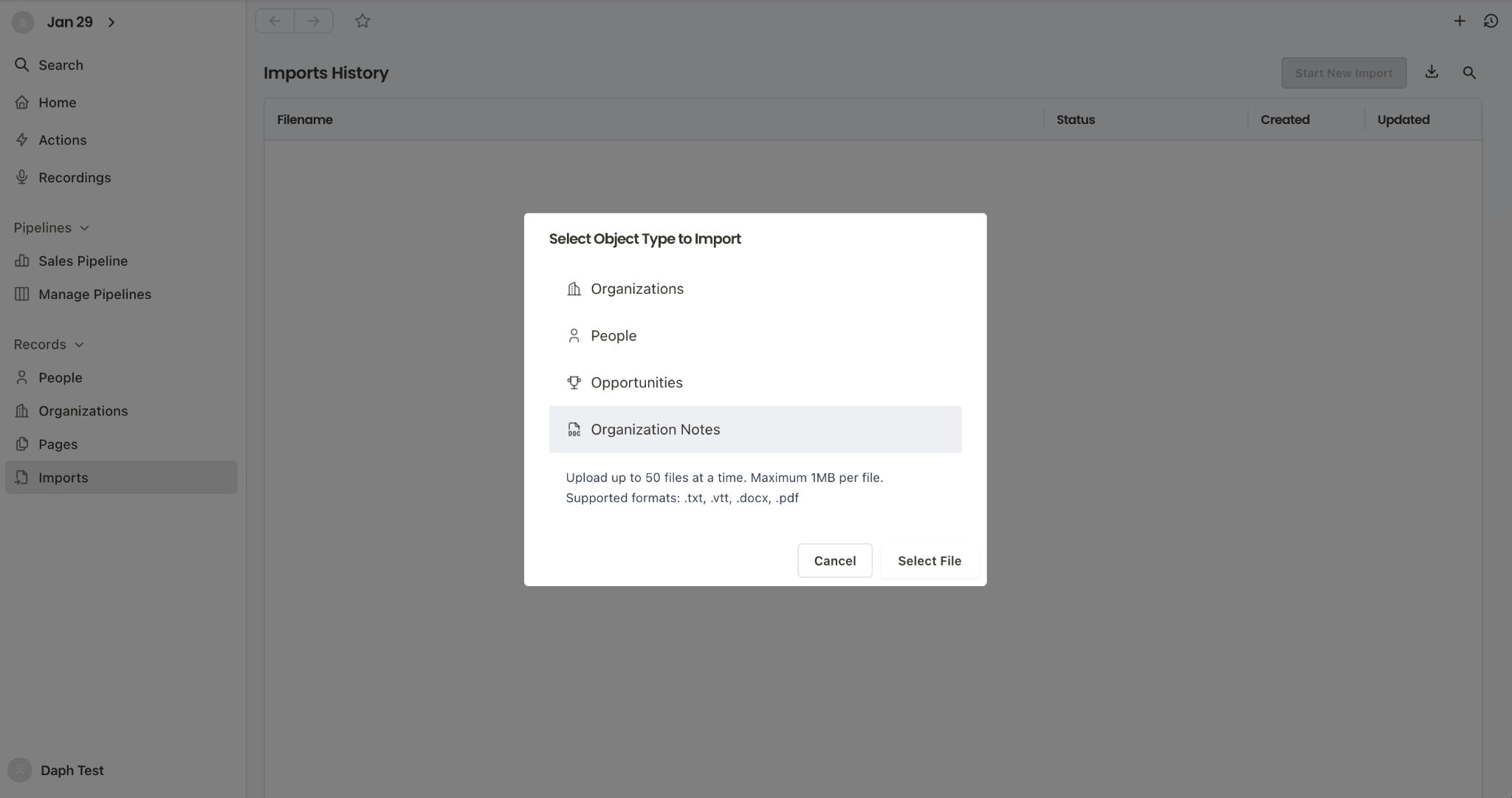
Historical meeting transcripts: If you have recordings from other tools, you can import the transcripts so Day AI has that context. Under Records in the navigation click on Imports and Start New Import. Choose Organization Notes. You can upload up to 50 files at a time, in one of our supported formats:.txt, .vtt, .docx, .pdf
Invite Your Team
Day AI works best in multi-player mode when your team is sharing data from relevant emails, slacks and recording meetings. The more context the Assistants have, the more effective they will be.
Adding teammates: Go to Workspace Settings → Members. Owners and Admins have permissions to invite teammates. There is no charge for seats, only for Assistants. You will decide in a separate step who should receive Assistant authorizations. Meeting recording and note-taking is included whether or not you have an Assistant.
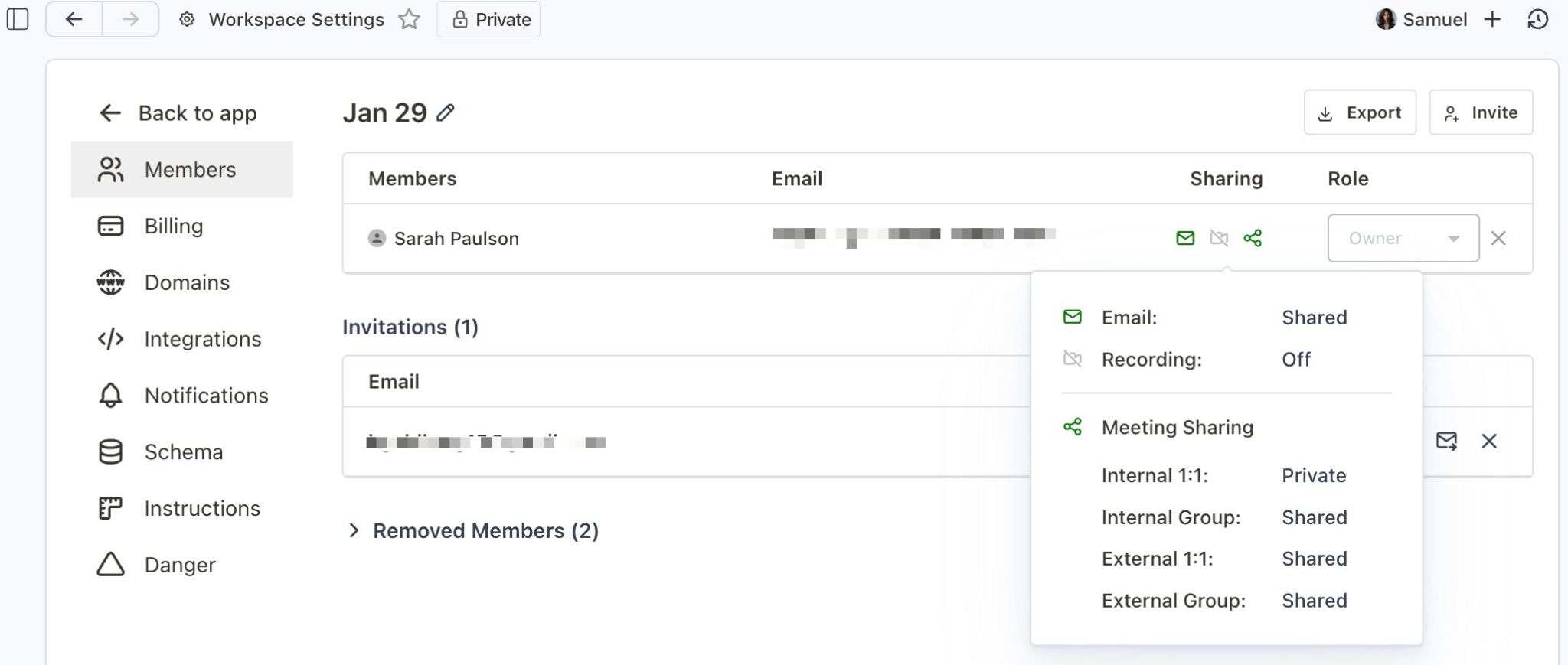
Tip: Admins and Owners can see teammates sharing rules to ensure data sharing is properly configured.
Authorizing Assistants: Owners can authorize Assistants for teammates in Workspace Settings → Billing. In the Manage Assistants tab, click "New Authorization”
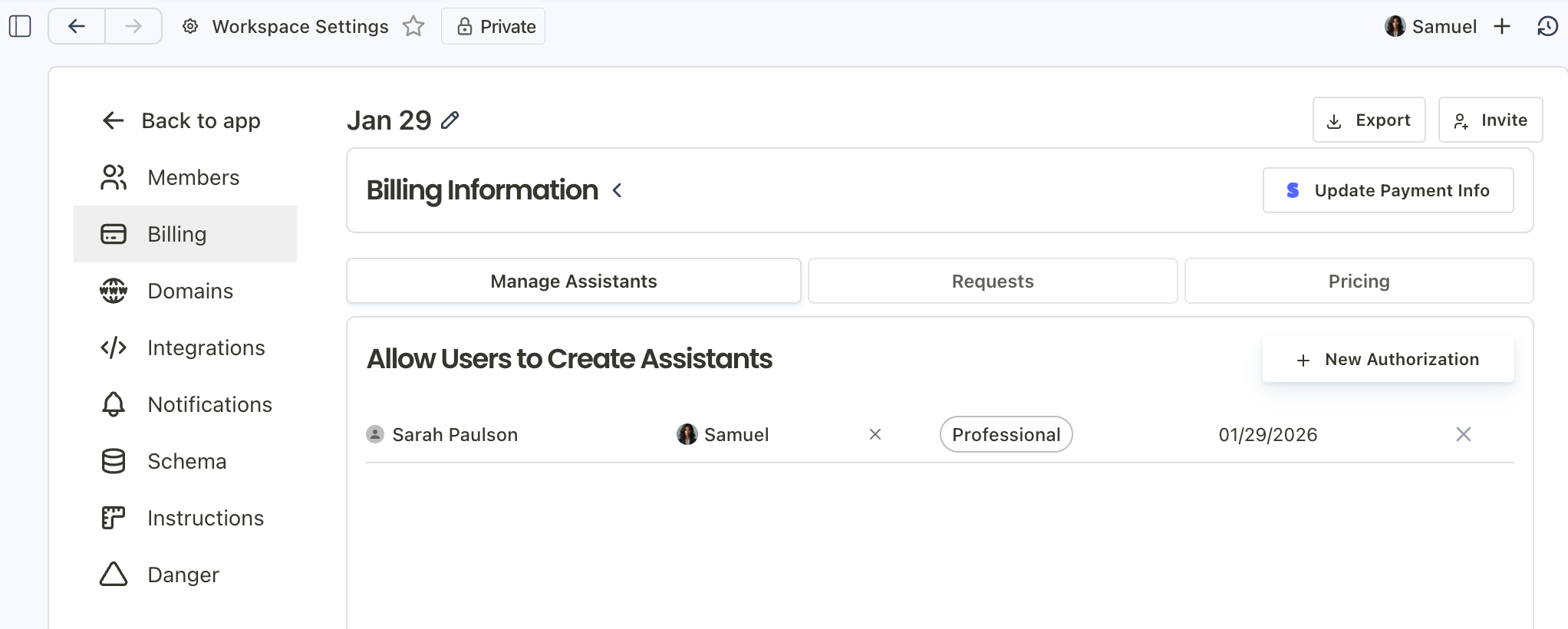
Choosing the right tier for each role:
- Turbo: Best for general productivity. Includes automatic Actions, email drafting, meeting prep and one daily schedule.
- Professional: Best for your Go to Market team and anyone running complex workflows, schedules, or custom analysis. Includes pipeline management, two daily and one weekly schedule.
- Executive: For leaders configuring across teams, includes workspace configuration, two daily, one weekly and every four hours schedules.
More details can be found at https://day.ai/pricing
Set Up Scheduled Reports
Your Assistant can send you regular briefings so you're always prepared. When creating a schedule, think beyond "what happened" to "what do I need to know to act." The best schedules surface insights, not just data.
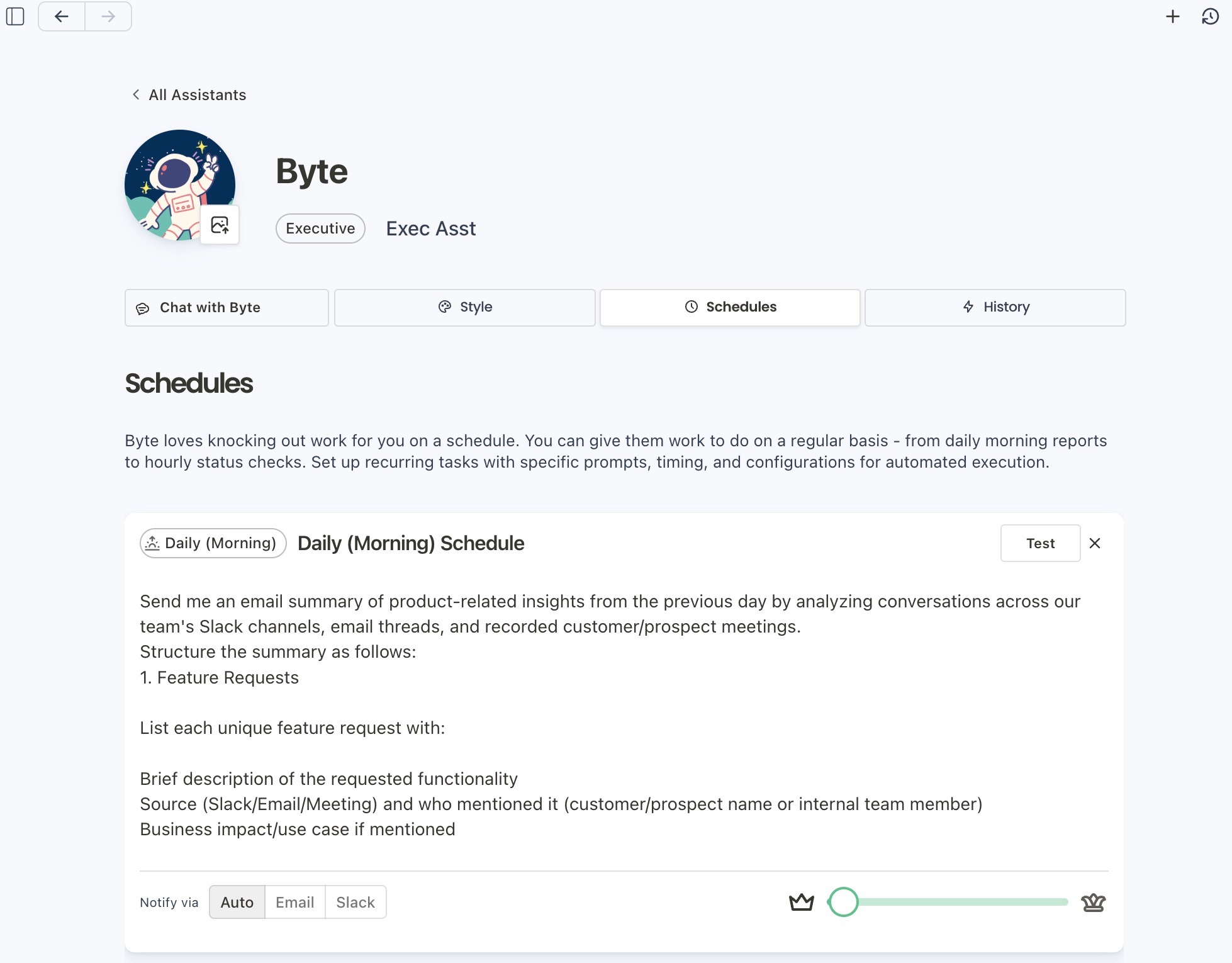
Ask your Assistant:
- "Send me a daily briefing every morning at 8am with my meetings and context on each person"
- "Every week analyze my pipeline and summarize deals that moved, stalled, or need attention. For those that need attention, make a suggestion for how I should proceed."
- "Every Friday, summarize the feature requests and objections I heard in calls this week"
- "Help me configure recurring scheduled tasks for you"
Adjust the Default Properties
Day AI automatically populates your Opportunities with 10 Default Custom Properties for things most people want to track like Next Step and Close Date. You can edit the prompts for these Default Custom Properties to be tailored to your business, or delete those that are not necessary. We recommend starting with editing Amount and Close Date to be tailored to you.
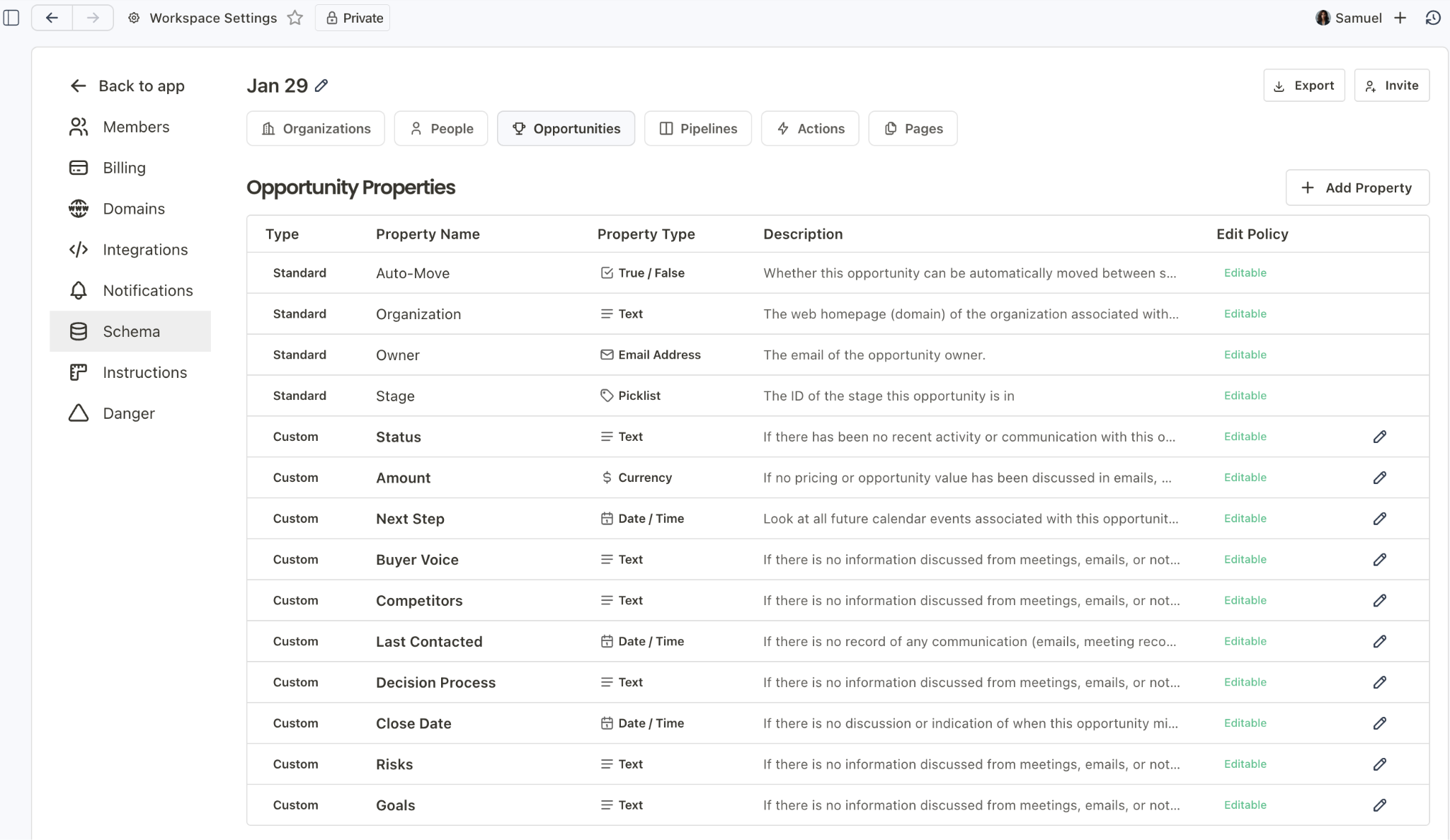
Ask your Assistant:
- "Update the Amount custom property using this seat pricing model”
- “Our average close time is 70 days, help me update the Close Date custom property prompt to reflect that and then backfill the values”
Connect Day AI to Slack
Get notifications and chat with your Assistant without leaving Slack.
%20-%20Day%20AI%20-%201%20new%20item%20-%20Slack%202026-01-31%20at%201.57.57%20PM.jpg)
Once connected, you get four things:
- Summarization of Customer Conversations – add Day AI to any Slack Connect channel with customers and it will pull context and update the CRM accordingly.
- Action notifications – get notified every time a new Action is created for you
- Opportunity notifications — stay informed on deal activity without checking the app
- Chat with your Assistant — ask questions, request updates, or kick off tasks right from Slack either in a DM with Day AI or by tagging @dayai in a channel the app is in.
Ask your Assistant:
- "How do I connect Day AI to Slack?"
Ask your Assistant in Slack
- "@DayAI What did John Bisnusman say about pricing in yesterday’s meeting?
- "@DayAI Add a note to Acme Corp that they called and said they want to move forward"
Tip: Slack Apps can only see content of a channel from the time it is added moving forward, not historical conversations.
Connect Day AI to Claude
Full setup instructions here: https://day.ai/mcp
When you connect Day AI to Claude, you can query and update Day AI data from within Claude. Claude mobile becomes your Day AI mobile app. You can check on deals, add notes, or ask questions about your pipeline from anywhere.
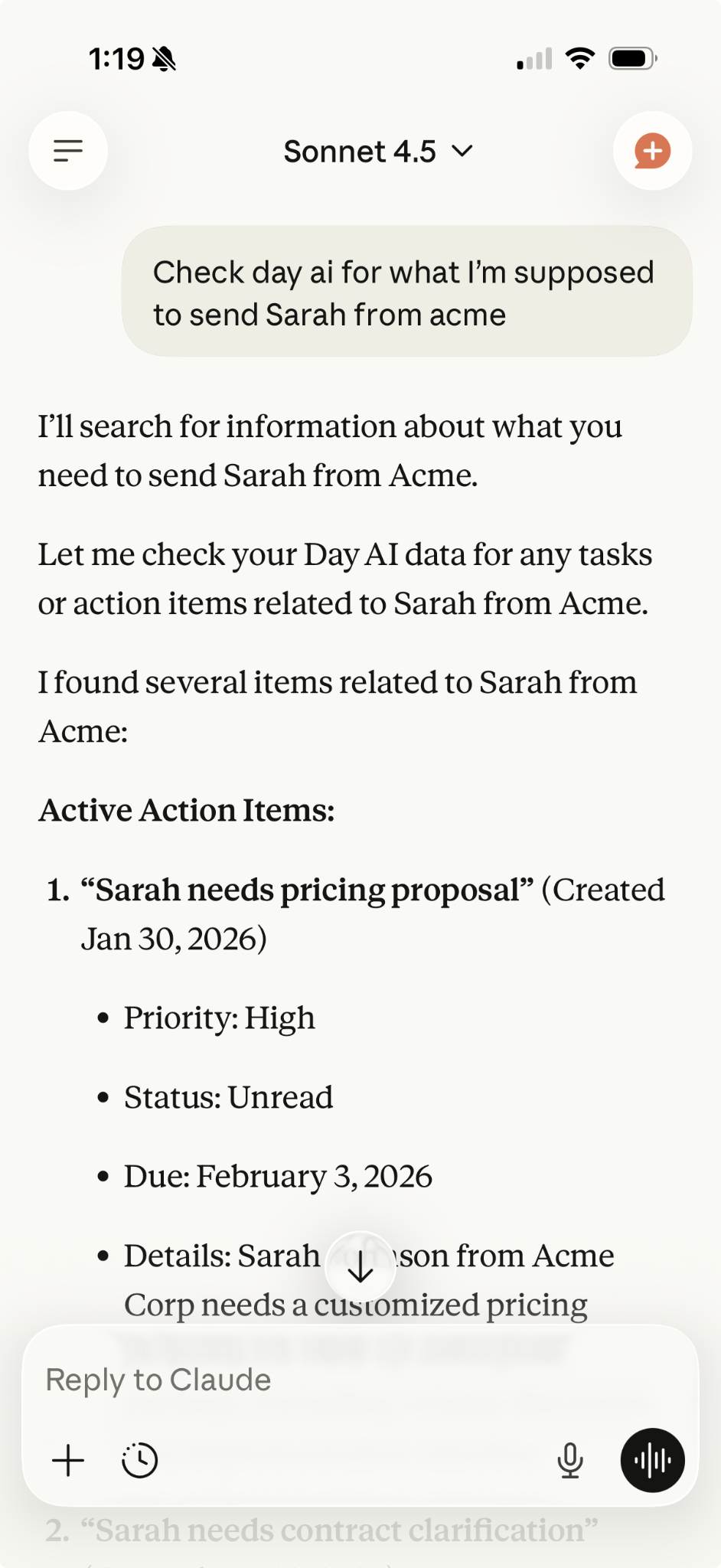
Tip: The next time you're at a conference, open the Claude Mobile app, take a photo of a business card, add it to a chat with Claude and say "Add this person to Day AI. Make a note that he was the one who knows Sally."
Ask your Assistant in Claude (try dictation!):
- "Update my Acme Corp opportunity in Day AI with this information"
- "What Action items from Day AI should I focus on today?"
Your First Month
The goal this month: automate your workflows and let Day AI work in the background.
Set Up Custom Properties
Custom properties let you track what matters to your business. Day AI can populate them automatically from CRM data (including conversational data), pull data from the web, or let you fill them manually.
Ask your Assistant:
- "Create a property to track each company's tech stack based on our conversations"
- "Add a property for company size and fill it using web search"
- "Create a picklist property for deal priority with options High, Medium, and Low"
Create Custom Views
Any table can be customized to the specific filters, grouping, columns. You can favorite any View or Record for easy access from the Navigation by clicking the star at the top of the panel.
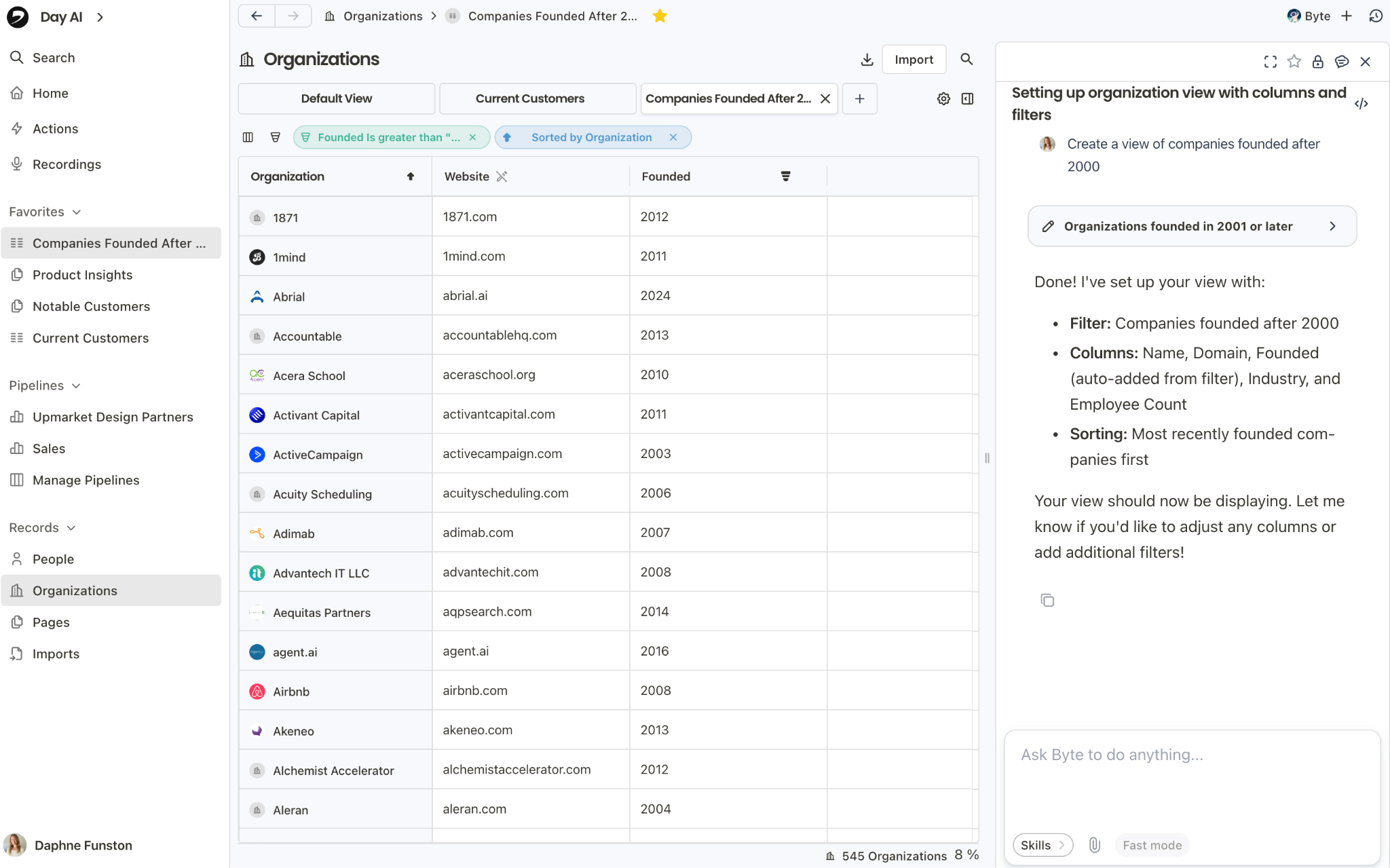
Tip: You must have a property to filter on to create saved View, but your Assistant can show you a table of records within chat if you want a temporary visualization based on something that’s not part of your data schema.
Ask your assistant:
- "Create a view of all opportunities in the Negotiation stage"
- "Create a view of organizations that are already our customers based off our custom property"
Create Living Pages
Pages can be more than notes—use them as running reports your Assistant updates over time.
Example: Upload your H1 Roadmap document to chat and ask your Assistant: "Create this as a page for me. Then create a weekly schedule where you review all my calls and update my H1 Product Roadmap page with a table showing feature requests we're hearing. Flag which ones are already planned, which are in our Later bucket, and which are new trends we haven't considered. Include citations from meetings."
This turns your conversations into ongoing intelligence you can reference and share.
Ask your Assistant:
- "Create a page that tracks trends from my sales calls and update it weekly"
- "Make a page summarizing what I'm hearing about competitors and keep it current"
Set Up Automated Proposal Generation
If you send proposals or scopes after calls, you can automate the first draft. Your Assistant can pull context from the meeting—requirements discussed, budget mentioned, timeline—and fill out a proposal you can review and send. Schedules can be configured to send directly to you in email or slack, or to a Slack channel where Day AI is added.
Ask your Assistant:
- "Every evening, draft proposals from my discovery calls that day. Use my Proposal Template. Post it to the #customer-proposals channel inSlack"
We hope this guide helps you get set up. Your Assistant is always there to help you out and so is the Day AI team. Click Contact Us in the Profile if you ever need to reach out!
.jpeg)